Execute trades quickly and manage risk directly from the LBX app. Here is how to get started:
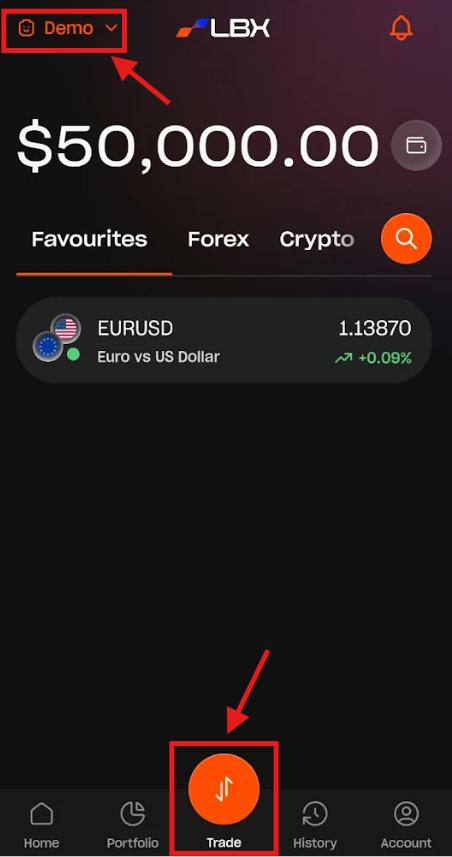
1. Go to the Trade section and tap "Demo" or "Real" in the top-left corner.
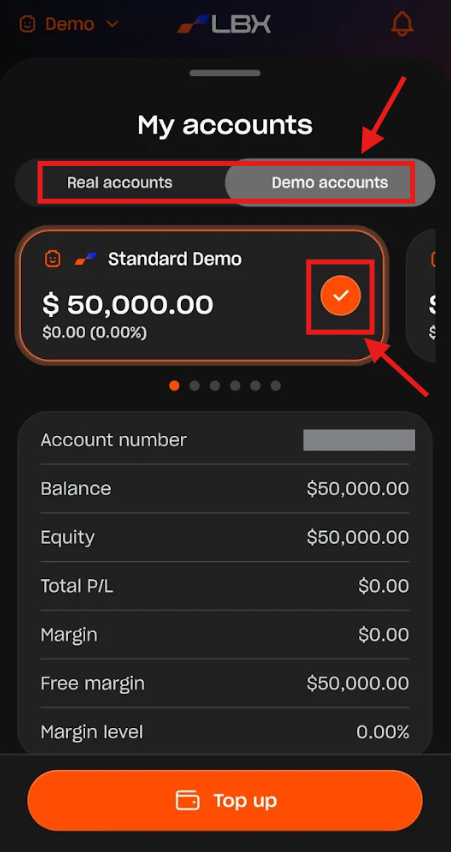
2. Select the Demo or Real account you wish to trade with.
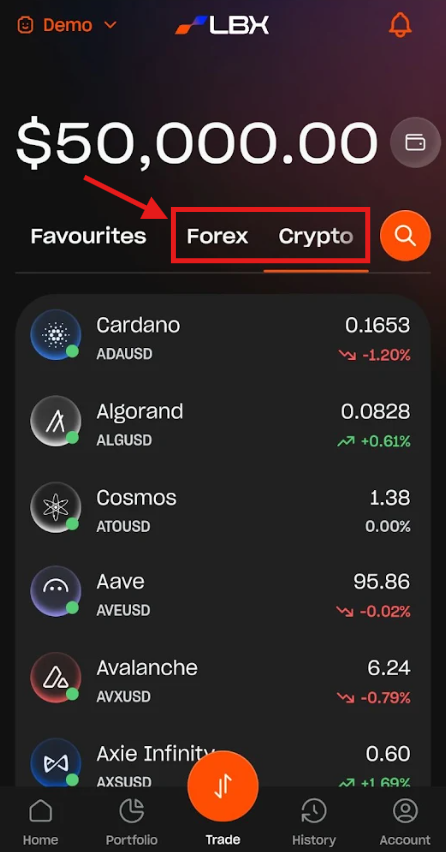
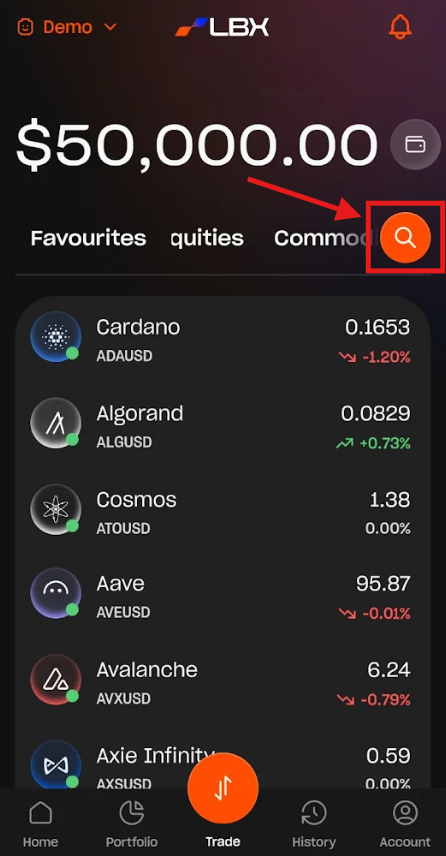
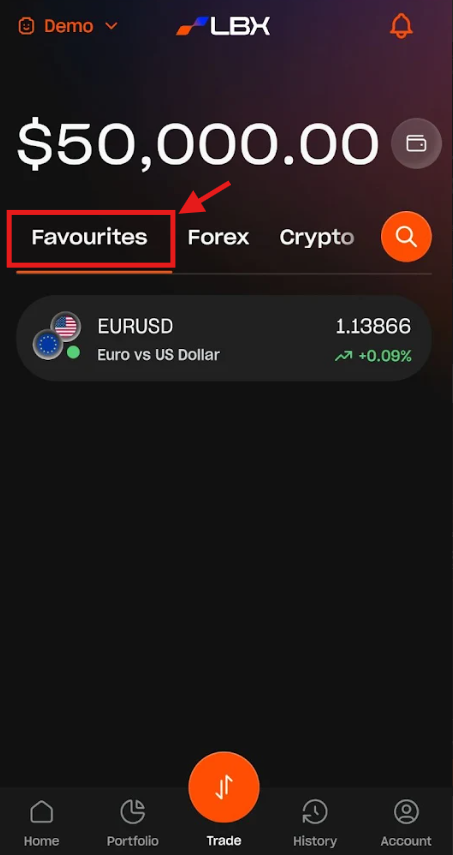
3. Select the instrument you are interested in. You can:
Scroll through the asset classes (Forex, Crypto, Indices, etc.) and choose an instrument from the respective list.
Tap the Search button to find a specific instrument.
Select an instrument previously added to your Favourites.
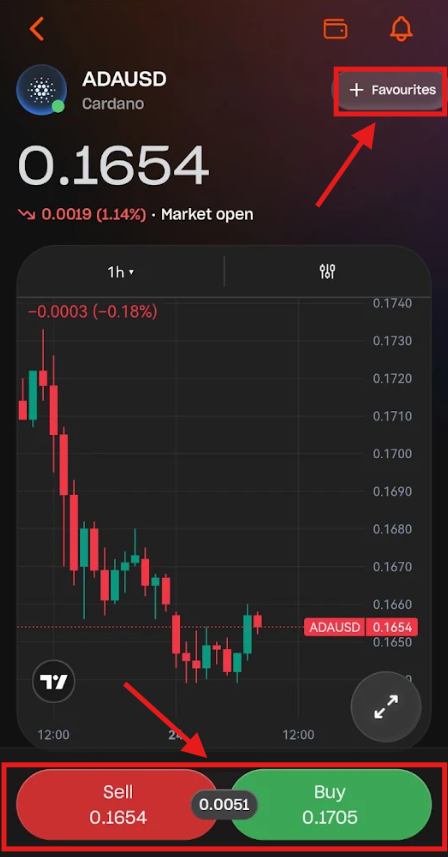
4. On the instrument page, tap "Buy" or "Sell". From this page, you can also add the instrument to your Favourites or access relevant market data.
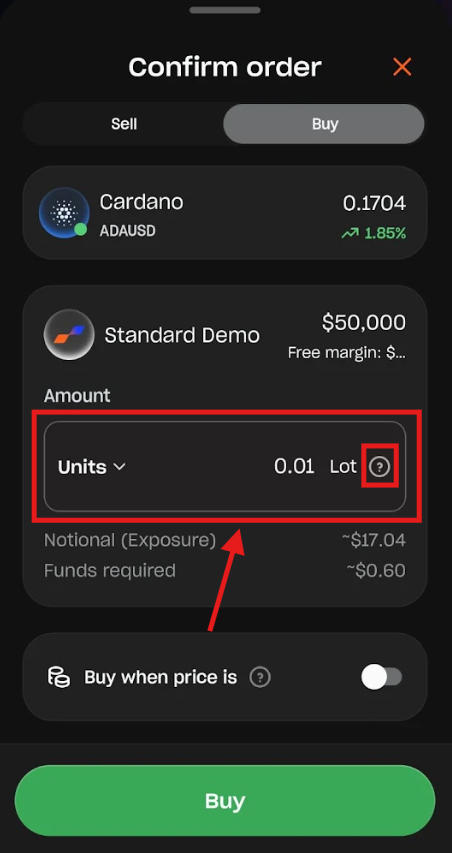
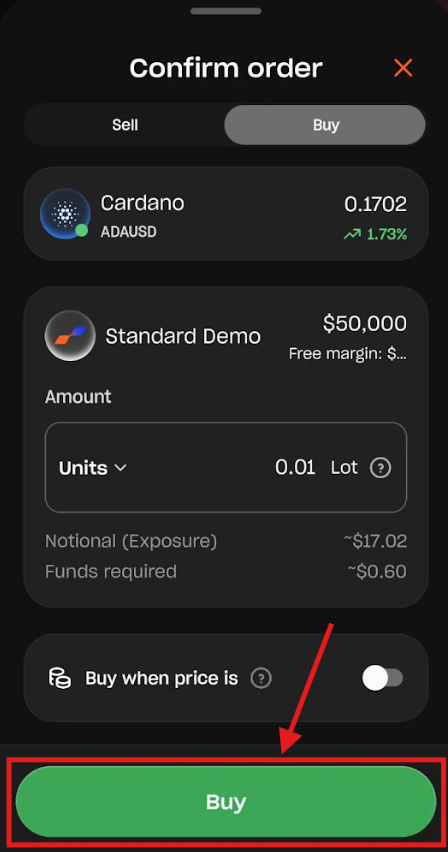
5. On the Confirm order screen, review your trade details and specify your position size (Amount) using asset units, exposure, or required funds. You can tap the "?" icon for more information on these options.
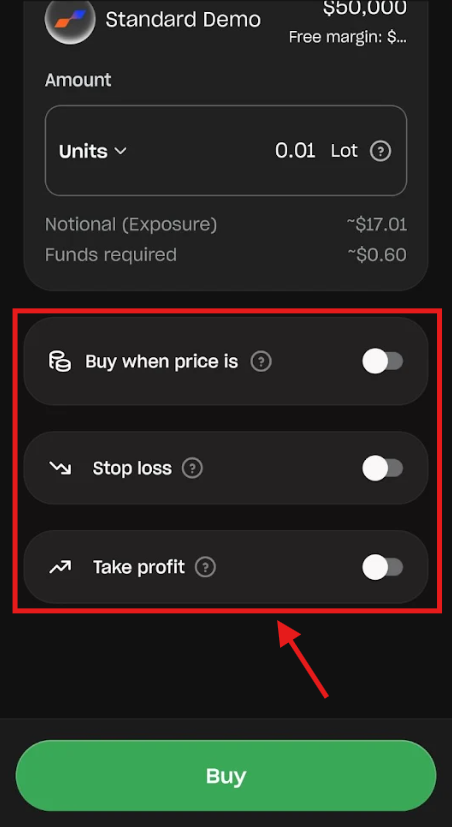
6. (Optional) On the Confirm order screen, you can also configure automation features such as Buy/Sell stop ("Buy when price is" / "Sell when price is"), Stop loss, and Take profit. More details below.
7. Tap "Buy" or "Sell" to execute your order.
How to set up automated orders
You can configure automated execution rules directly on the Confirm order screen before executing your trade for better risk management. LBX provides the following automation features:
Buy stop / Sell stop:
Buy stop ("Buy when price is"): Automatically opens a buy position if the market price rises to your specified level.
Sell stop ("Sell when price is"): Automatically opens a sell position if the market price drops to your specified level.
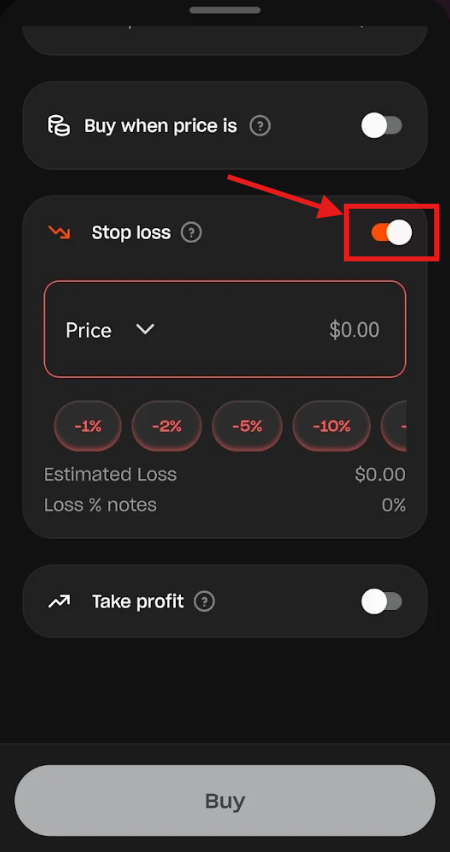
Stop loss: Automatically closes your open position at a designated price or loss limit to prevent further losses.
Take profit: Automatically closes your open position when your price target is hit to lock in gains.
Follow these steps to set up automated orders:
On the Confirm order screen, tap the toggle next to the desired feature.
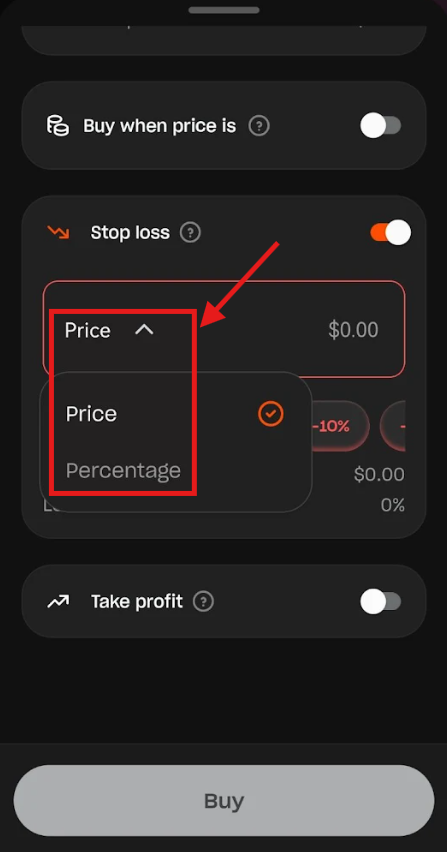
(Only for Stop Loss and Take profit) Choose your preferred parameter.
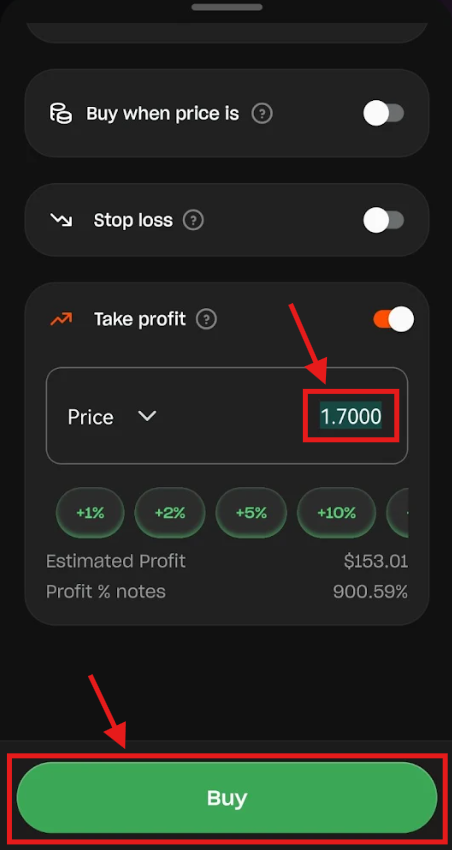
Enter your target level and then tap "Buy" or "Sell" to submit your order with the active rules attached.
Tip: You can modify or add Stop Loss and Take Profit to open positions at any time by navigating to the Portfolio section and selecting your active trade.
Was this article helpful?
That’s Great!
Thank you for your feedback
Sorry! We couldn't be helpful
Thank you for your feedback
Feedback sent
We appreciate your effort and will try to fix the article