Staying on top of your account activity is simple with LBX. You can easily check your transaction history, including deposits, withdrawals, and other transfers, in your personal profile.
The process is very similar whether you're using the desktop or mobile version of the platform:
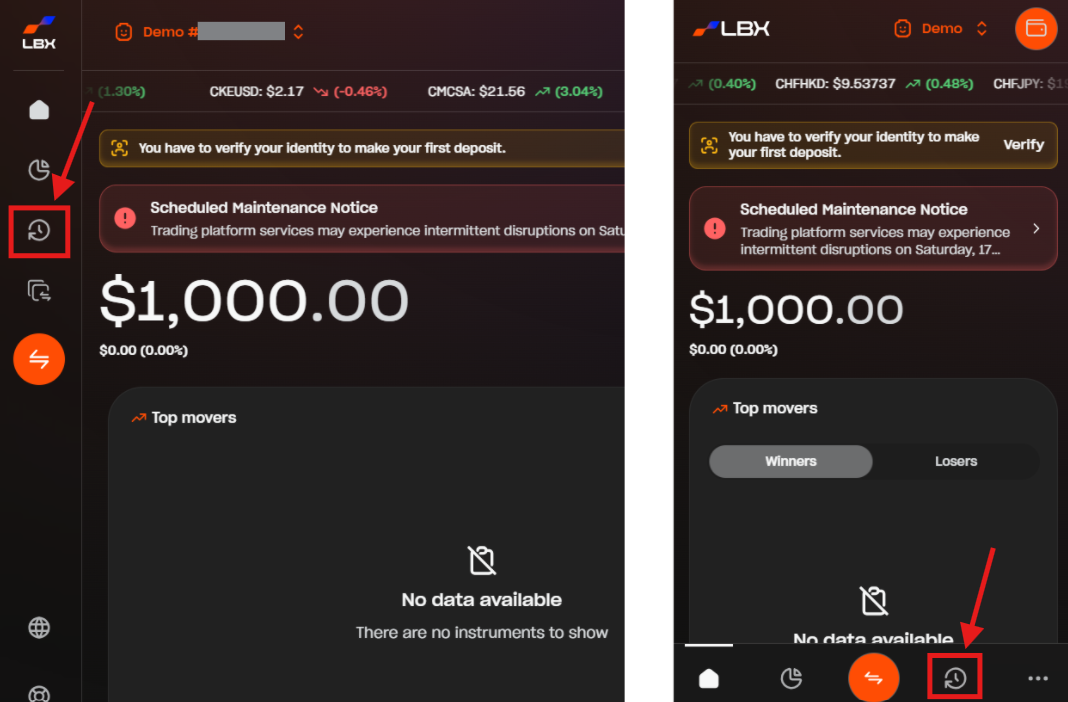
1. Click or tap the History icon (clock icon). You can find it in the left bar on desktop or in the bottom bar on mobile.
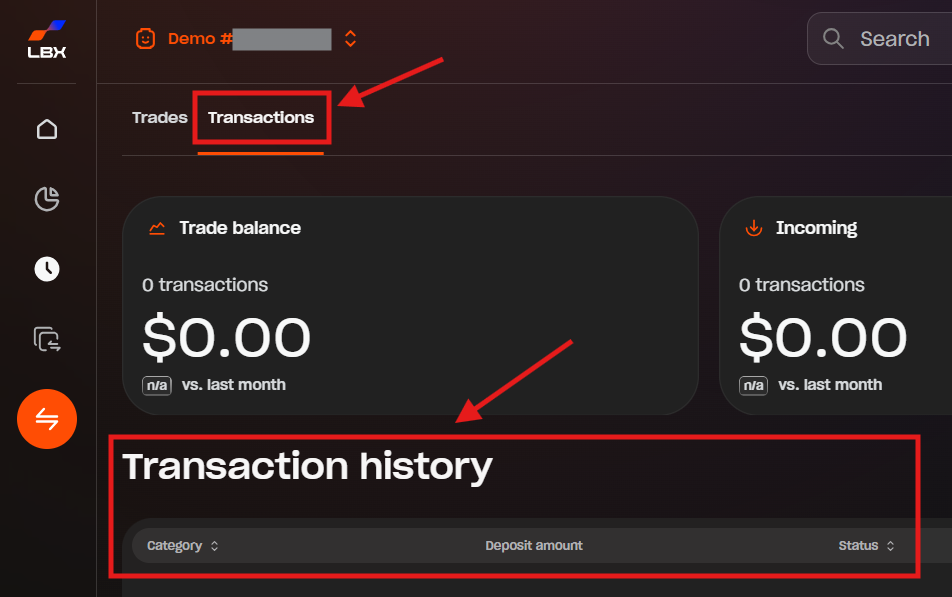
2. Select "Transactions" at the top of the screen. You will see a detailed record of your deposits, withdrawals, internal transfers, and related commissions under the "Transaction history" section.
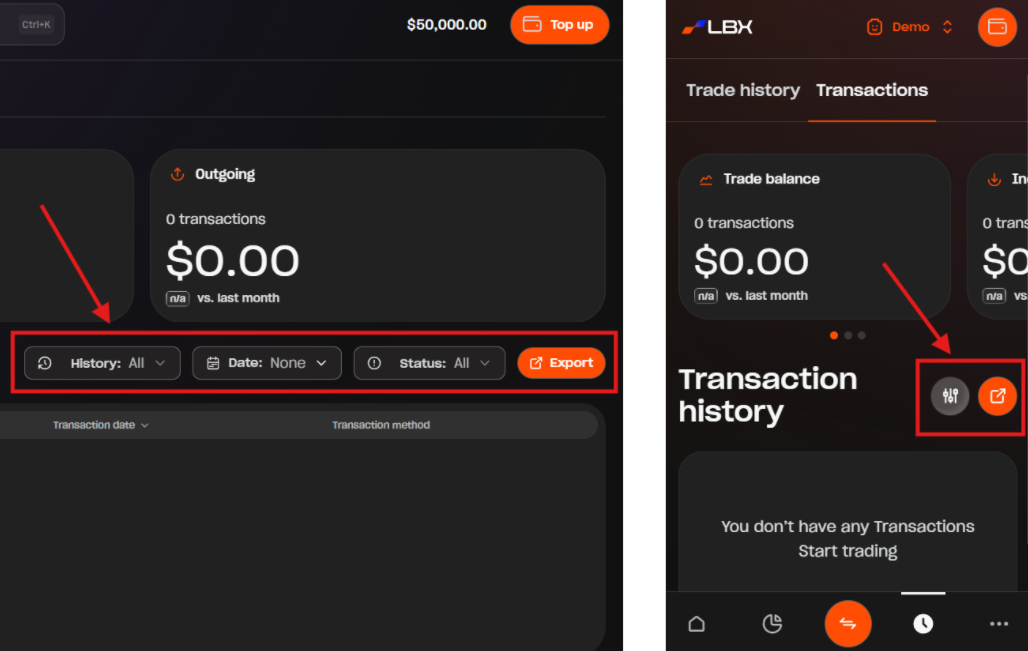
3. (Optional) You can filter your transactions by type, date, and status using the filter options. Just click the individual filter buttons on desktop or tap the grey filter icon on mobile to open the "Filters" screen. You can also export your history in CSV format using the orange "Export" button, ideal for personal record-keeping and financial tracking.
Was this article helpful?
That’s Great!
Thank you for your feedback
Sorry! We couldn't be helpful
Thank you for your feedback
Feedback sent
We appreciate your effort and will try to fix the article